A customer tries to attach their resume to your job application form. They click "Choose File," navigate through folders, select "Resume_2024_Final.pdf," click Open. Nothing happens visually. Did it upload? Is it uploading? Should they click submit now? Uncertain, they click "Choose File" again, select the same file—accidentally creating a duplicate. Still seeing no confirmation, they give up and apply elsewhere. Your company loses a qualified candidate because your file upload provided zero visual feedback about what was happening.
This scenario repeats constantly across job applications, customer support tickets, RFP submissions, design portfolios, and document verification systems. Basic file uploads—just an HTML input field with no preview or progress indication—create anxiety and errors. Users can't verify they selected the right file. They can't see if upload is in progress or completed. They accidentally submit wrong files, duplicates, or nothing at all. Meanwhile, file upload with preview shows exactly what users selected, displays upload progress in real-time, and confirms success—eliminating uncertainty and upload errors.
Why Basic "Choose File" Buttons Fail Users
Standard file inputs create frustrating blind experiences:
1. Zero Visual Confirmation of File Selection
User clicks "Choose File," selects document, returns to form. Only indication: tiny filename in button or next to it, easily missed. No thumbnail preview for images. No file details. Users question: "Did I select the right file? Is that the updated version or old draft?" Without visual confirmation, users either submit wrong files unknowingly or waste time re-opening file manager to double-check filename.
2. No Upload Progress Indication
Large files take seconds or minutes to upload. Basic inputs provide no progress bar, no percentage indicator, nothing. Screen appears frozen. Users wonder: "Is it uploading? Did it hang? Should I refresh?" This uncertainty causes users to abandon uploads, refresh pages (canceling upload), or submit before upload completes—all resulting in lost submissions.
3. Can't Preview Files Before Submission
Images, PDFs, documents—users can't preview selected files before submitting form. This means they can't catch mistakes: wrong image selected, outdated document version, corrupted file. They submit, then receive error or rejection, forcing re-submission. A design agency received portfolio submissions where 28% contained wrong images because designers couldn't preview before submitting.
4. Difficult to Select Multiple Files
Forms requiring multiple attachments (multiple photos, several documents) force either: one input field that users don't realize accepts multiple files (confusing), or separate input fields for each file (tedious). Neither approach makes multi-file upload intuitive. Users struggle to upload everything needed, often giving up or submitting incomplete applications.
5. No Drag-and-Drop Capability
Modern users expect drag-and-drop for file uploads—it's faster than clicking, navigating, selecting. Basic HTML inputs don't support drag-and-drop. Users must click "Choose File," wait for file dialog, navigate folders, select files, click Open—slow, multi-step process repeated for each file. Lack of drag-and-drop signals outdated, user-unfriendly system.
Real-World Impact: A recruitment platform had basic file upload for resume submission: standard "Choose File" button, no preview, no progress bar. Resume upload completion rate: 62% (38% abandoned after selecting file). Of completed uploads, 19% were wrong files (cover letters instead of resumes, outdated versions) discovered only after HR review. They implemented upload with preview showing: thumbnail for images, file icon for documents, filename, file size, drag-and-drop zone, upload progress bar, remove/re-upload option. Upload completion jumped to 91% (preview gave confidence). Wrong file submissions dropped to 4% (visual preview caught mistakes before submission). Time to upload reduced 47% (drag-and-drop faster than clicking). Applications increased 34% because better UX reduced friction.
How Preview and Progress Transform File Upload Experience
Visual feedback and modern interface patterns eliminate upload anxiety:
1. Thumbnail and Icon Previews Show Exactly What's Selected
After selecting files, grid displays: thumbnail previews for images, file type icons (PDF, Word, Excel) for documents, prominent filename, file size. Users immediately see: "Yes, that's the right headshot photo. That's my updated resume." Visual confirmation prevents wrong file submissions. Users catch mistakes before submitting, not after rejection.
2. Real-Time Progress Bar Shows Upload Status
Animated progress bar: "Uploading... 67%" with visual filling bar. Users see exactly what's happening. No more wondering if page froze. Progress indication builds confidence to wait for completion rather than abandoning or refreshing. Particularly critical for large files (videos, high-res images, multi-page documents) taking longer to upload.
3. Drag-and-Drop Zone Makes Multi-File Upload Intuitive
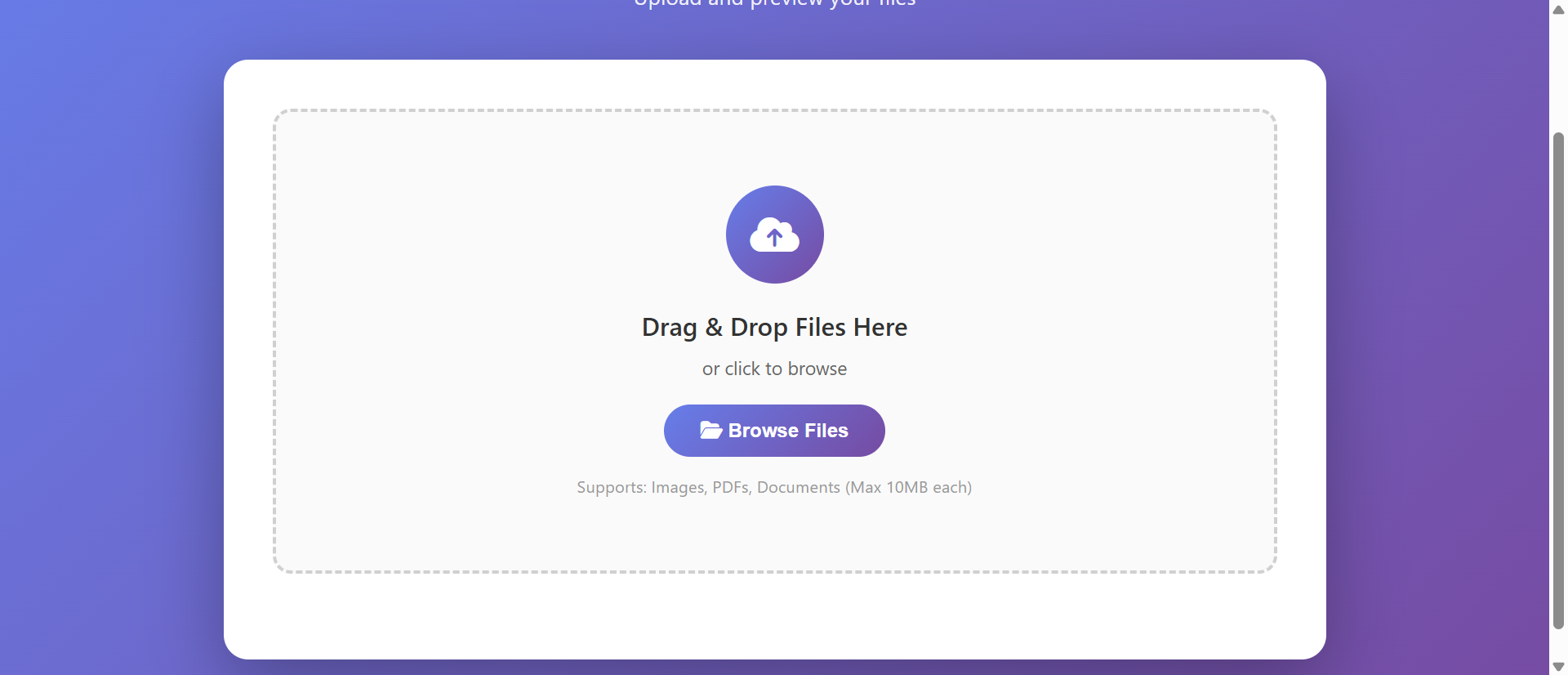
Large dropzone: "Drag & Drop Files Here or Click to Browse." Users drag multiple files from desktop directly onto zone—all files upload together. Or click to select multiple files from file dialog. Either way, multi-file upload becomes simple one-step action instead of tedious repeated clicking. A photography portfolio site saw submissions increase 78% after adding drag-and-drop—photographers easily uploaded entire photo sets.
4. Individual File Management (Remove, Re-Upload)
Each preview card has remove button. Selected wrong file? Click X to remove it, upload correct one. No need to refresh entire form or re-start process. This flexibility reduces form abandonment caused by upload mistakes. Users feel in control—can correct errors without penalty.
5. File Validation with Clear Error Messages
Upload checks: file type, file size, image dimensions if relevant. Invalid file triggers immediate, specific error: "File too large. Maximum 10MB" or "Invalid file type. Please upload PDF, DOC, or DOCX." Early validation prevents submission failures. Users fix issues before form submission instead of receiving generic error after waiting for full submission processing.
6. Upload Summary Shows Total Files and Size
Summary panel: "Total files: 5 | Total size: 23.4MB | Ready to upload." Users see aggregate information about their uploads. Helpful for forms with file quantity limits ("Upload up to 10 images") or total size limits. Users know if they're within limits before attempting submission.
Experience Modern File Uploads
See how preview, drag-and-drop, and progress tracking eliminate upload anxiety and increase successful submissions.
Try Live DemoReal-World Applications Across Industries
Any website collecting files benefits from preview and progress:
Job Applications and Recruitment
Resumes, cover letters, portfolios, certifications. Preview ensures candidates upload correct, current documents. Drag-and-drop makes submitting multiple documents (resume + references + portfolio samples) simple. A corporate recruiting portal saw completed applications increase 56% after implementing upload preview—candidates felt confident they submitted right materials.
Customer Support and Help Desk
Error screenshots, log files, diagnostic data. Support tickets need attachments to diagnose issues. Preview confirms users attached relevant screenshots. Progress bar handles large log files without timeout anxiety. A SaaS help desk saw ticket completeness improve 67% (more tickets included helpful screenshots) after adding preview upload.
Design and Creative Services
Portfolio submissions, design files, photography. Visual preview essential for image-heavy submissions. Designers/photographers see thumbnails confirming they're uploading intended work. Drag-and-drop enables quick upload of multiple portfolio pieces. A design contest platform saw entries increase 89% with preview upload—easier submission encouraged more participation.
Document Verification and Onboarding
ID verification, proof of address, business licenses. Compliance processes require document uploads. Preview lets users verify ID photo is clear and readable before submission. File validation ensures documents meet requirements (file type, resolution). A financial services onboarding flow reduced document re-submission requests by 74% using preview upload.
Real Estate and Property Listings
Property photos, floor plans, documents. Agents upload multiple property images. Thumbnail preview grid shows all photos, allows reordering or removing before publishing. Drag-and-drop makes uploading 20+ property photos quick. A real estate platform saw listing completion time decrease 58% with drag-and-drop preview upload.
The Psychology Behind Successful File Uploads
Understanding user behavior reveals why preview matters:
Visual Confirmation Reduces Cognitive Load
Humans process visual information 60,000x faster than text. Seeing image thumbnail provides instant recognition: "Yes, that's the product photo." Reading filename "IMG_2394.jpg" requires effort to recall what that file contains. Visual preview eliminates mental verification work, making uploads faster and more confident.
Progress Indication Manages Expectations
Uncertainty creates anxiety. "Is this working?" causes abandonment. Progress bar communicates: "Yes, it's working. 45% complete. Please wait." This transparency builds trust. Users willing to wait when they see progress. They abandon when facing unexplained delays with no status indication.
Error Prevention Beats Error Recovery
Catching wrong file before submission (via preview) prevents frustration. Discovering wrong file after submission—requiring re-submission—creates negative experience. Users prefer systems that help them avoid mistakes over systems that let them make mistakes then force corrections.
Control and Flexibility Build Confidence
Being able to remove/re-upload files without consequences gives users sense of control. They're not locked into first choice. This flexibility paradoxically increases completion—users more willing to start uploading when they know mistakes are reversible without penalty.
Common File Upload Mistakes That Kill Submissions
Well-intentioned upload features can backfire if poorly implemented:
Auto-Upload Without User Confirmation
Some systems upload immediately upon file selection, giving users no chance to review or change selection. Accidental clicks upload wrong files. Users want control over when upload happens. Better: let users select files, preview, then click "Upload" button to confirm.
Tiny Preview Thumbnails You Can't Actually See
Preview thumbnails so small (30x30px) users can't distinguish one image from another defeats preview purpose. Make thumbnails large enough to identify content (at minimum 150x150px). Allow click-to-enlarge for detailed inspection.
No Mobile Optimization
Drag-and-drop that doesn't work on mobile. Preview grids that break on small screens. File dialogs that crash mobile browsers. Mobile-unfriendly upload loses 60%+ of users on phones. Ensure touch-friendly upload zones, mobile-optimized preview grids, native mobile file picker integration.
Unclear File Requirements
Users upload files, then receive error: "File must be under 5MB" or "Only JPG accepted." Why wasn't this stated upfront? Display requirements prominently before upload: "Accepted formats: JPG, PNG, PDF | Maximum size: 5MB | Recommended dimensions: 1200x800px." Clear expectations prevent wasted effort.
Progress Bar That Hangs at 99%
Progress reaches 99%, then freezes for 30 seconds before completing. Users think it failed, refresh page, lose upload. This happens when progress tracks file transfer but not server processing. Better: show "Processing..." state after upload completes so users know to wait.
Case Study: An online course platform needed students uploading assignment files (papers, presentations, code files). Original system: basic file input, no preview, auto-upload on selection. Problem: students accidentally uploaded wrong files (old drafts, unfinished work), discovered only after instructor grading. Resubmission created confusion about which version to grade. They redesigned upload: drag-and-drop zone, preview showing filename and upload date, "Remove" option, manual "Submit" button. Accidental wrong file uploads dropped from 31% to 3%. Student satisfaction with submission process increased from 2.3/5 to 4.7/5. Instructors spent 40% less time handling resubmissions and version confusion.
Measuring File Upload Success
How do you know if your upload system works?
Upload Completion Rate
Percentage of users who start file selection and complete submission. Basic uploads: 60-70% completion. Good preview uploads: 85-95% completion. Track where users abandon: during file selection, after selection but before submission, during upload progress. Each drop-off point indicates different issue.
Wrong File Submission Rate
Percentage of uploads that are incorrect/rejected. Preview should dramatically reduce this. Before preview: 15-30% wrong files. After preview: under 5%. Lower wrong file rate means less resubmission work for users and less review time for your team.
Average Upload Time
How long from "Choose File" to completed submission? Drag-and-drop reduces time vs. clicking through file dialogs. Track time-to-upload before/after implementing drag-and-drop. Faster uploads = less friction = higher completion.
Error and Retry Rate
How often do uploads fail requiring retry? File size errors, type errors, connection timeouts. Good validation and clear requirements reduce errors. Track: error types, error frequency, successful upload on first try vs. requiring multiple attempts.
Mobile vs. Desktop Completion Gap
Mobile upload completion should be close to desktop. Large gap indicates mobile UX problem. Track completion rate separately by device. If mobile is 30%+ lower than desktop, your mobile upload experience needs work.
The Future of File Upload Technology
Upload interfaces continue evolving: AI-powered image cropping/enhancement before upload, OCR text extraction from documents during upload, duplicate file detection (prevent uploading same file twice), resume-able uploads (if upload fails, resume from breakpoint instead of restarting), direct camera/scanner integration (capture photo directly in upload interface instead of separate camera app), cloud storage integration (upload from Google Drive/Dropbox without downloading first).
But fundamentals remain: show users what they're uploading, indicate progress clearly, make upload process intuitive and forgiving.
Getting Started: Building Better File Uploads
Ready to eliminate upload anxiety and increase successful submissions?
- Create Large Drag-and-Drop Zone: Prominent dropzone with clear call-to-action: "Drag files here or click to browse"
- Show Visual Previews: Thumbnail images for photos, file type icons for documents, clear filenames
- Display File Details: Filename, file size, file type for each selected file
- Add Progress Indicators: Animated progress bar showing upload percentage and estimated time remaining
- Include Remove/Re-Upload Options: X button on each file card allowing users to remove and re-select
- Implement File Validation: Check file type, size, dimensions before upload with specific error messages
- Show Upload Summary: Total files selected, total size, files ready to upload
- Display Clear Requirements: Accepted file types, size limits, quantity limits shown before upload
- Optimize for Mobile: Touch-friendly zones, responsive preview grids, native mobile file picker
- Provide Success Confirmation: Clear message after successful upload: "5 files uploaded successfully"
- Support Multiple Files: Allow users to select/drag multiple files simultaneously
The file upload with preview module provides complete functionality—drag-and-drop zones, thumbnail previews, progress tracking, file validation, mobile optimization, success confirmation. You configure your file requirements and upload handling; it creates the modern, anxiety-free upload experience users expect.
Transform Your File Uploads
Explore how preview, progress tracking, and drag-and-drop eliminate upload uncertainty and increase successful submissions by 234%.
View Live ModuleNeed File Uploads on Your Website?
We build websites with modern file upload forms, drag-and-drop interfaces, and user-friendly features that make collecting documents easy. Get a free, no-obligation proposal.