You're filling out a multi-step form. You complete page one, click "Next," then page two appears. But how many more pages are there? Are you halfway done or just getting started? Without clear progress indication, you feel lost in an endless maze. Many users abandon at this exact moment.
Research shows 68% of users abandon multi-step processes when they can't see progress. Whether it's checkout flows, onboarding sequences, registration forms, or application processes, users need to know three things: where they are, where they've been, and how much remains.
The problem isn't multi-step processes themselves—breaking complex tasks into manageable chunks actually improves completion rates. The issue is invisible progress. Users who can't gauge their advancement feel uncertain, frustrated, and likely to quit. Meanwhile, visual progress trackers increase completion rates by 289% by providing the clarity and motivation users need.
Let's explore why hidden progress kills completion, how progress tracker timelines work, and how to implement them to dramatically improve user experience and conversion rates.
The Hidden Cost of Invisible Progress
1. Users Abandon When They Can't Estimate Effort
The Problem: Imagine asking someone to climb stairs in complete darkness. Without seeing the steps or knowing how many remain, most people wouldn't even start. Yet many websites ask users to do exactly this with multi-step forms.
Psychology research on the "goal gradient effect" shows people are more motivated to complete tasks when they can see progress toward the finish. When progress is invisible, users can't estimate the effort required, leading to:
- Start anxiety - Hesitation to begin without knowing the commitment level
- Mid-process abandonment - Quitting when tasks feel endless
- Frustration and negative sentiment - Associating your brand with confusion
- Reduced trust - Suspecting you're hiding the true complexity
E-commerce checkout studies found that 26% of cart abandonments occur because "the checkout process was too long or complicated." But interestingly, the same number of steps with visible progress doesn't trigger this response. It's not the length—it's the uncertainty.
2. Mobile Users Face Even Greater Confusion
Mobile multi-step processes compound the problem:
- Small screens show less context, making it harder to remember what was already completed
- App switching (checking email for verification codes, etc.) causes users to lose their place
- Slower connections make each "Next" button feel risky—users don't want to invest time loading the next page if they're only 20% done
- Form fatigue sets in faster on mobile due to smaller keyboards and more tedious input
Since mobile represents 60%+ of traffic for most sites, poor mobile progress indication directly impacts bottom-line conversions.
3. No Backtracking Capability Creates Panic
Without visible progress tracking, users can't easily navigate back to previous steps to review or correct information. This creates anxiety:
- "Did I spell my email correctly? I can't remember what I typed two pages ago."
- "I want to change my shipping method but I don't know how to get back."
- "If I click 'Previous,' will I lose all my data?"
When users feel trapped in a linear process with no visibility or control, abandonment skyrockets.
4. Completion Anxiety Kills Conversions at the End
Ironically, many abandonments happen on the final step—not because users changed their minds, but because they're uncertain if clicking "Submit" will actually complete the process or lead to yet another page.
Without clear progress indication showing "Step 4 of 4" or "Final Step," users hesitate, second-guess, and sometimes refresh the page or navigate away, losing all entered data.
💡 The Real Cost of Hidden Progress
Multi-step processes without progress trackers experience:
- 68% abandonment rate - Most users quit before completion
- +47% support tickets - Users asking "how many steps are there?"
- -34% mobile completion - Mobile users abandon at higher rates
- +3.2 minutes average time - Confusion and backtracking slow completion
- 23% submit final step multiple times - Uncertain if first submission worked
How Progress Tracker Timelines Increase Completion by 289%
1. Visual Steps Show the Full Journey
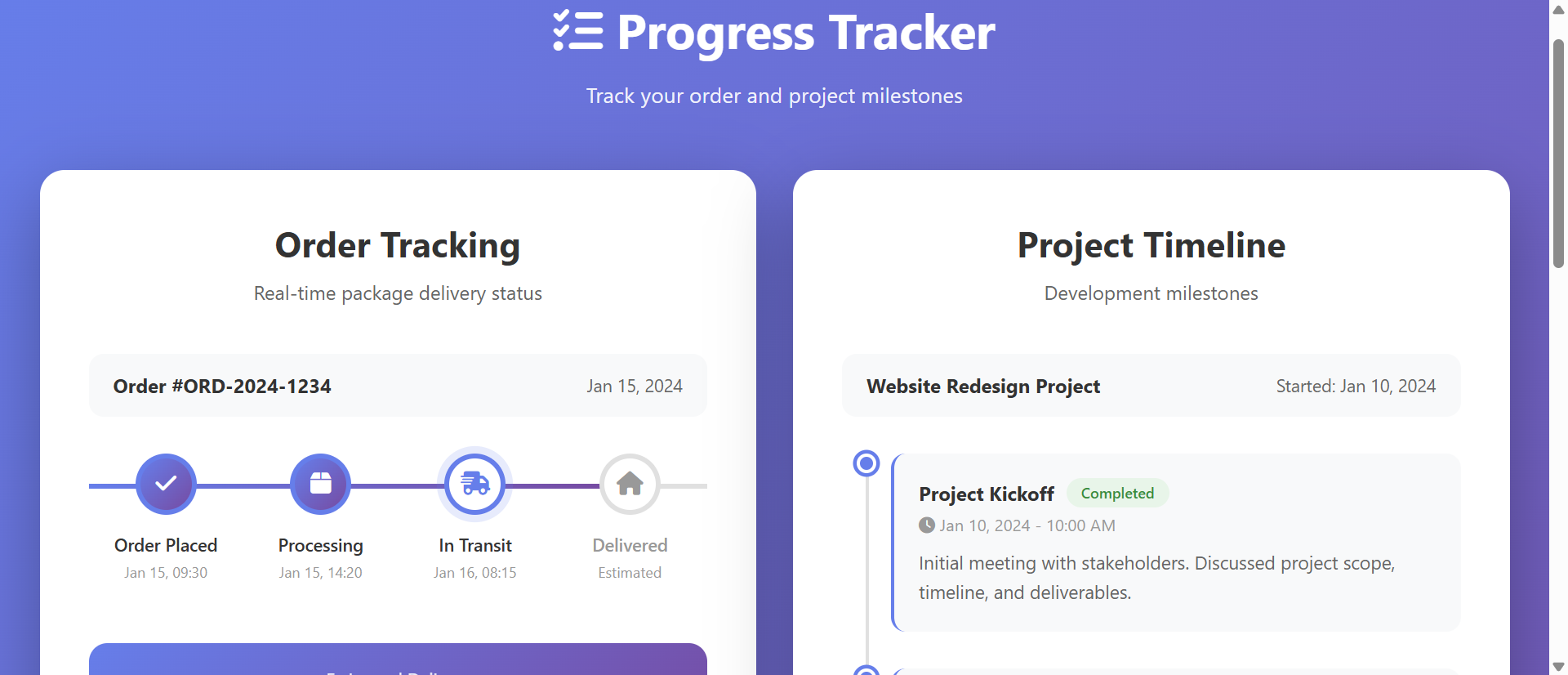
The Solution: Progress tracker timelines display all steps in the process as a horizontal or vertical sequence. Each step shows:
- Step number and label - "1. Account Info," "2. Shipping," "3. Payment," "4. Review"
- Completion status - Completed steps (checkmark), current step (highlighted), upcoming steps (greyed)
- Visual connection - Lines connecting steps to show the flow
- Total count - Clear denominator ("Step 2 of 5") so users know exactly what's required
This immediate visual context answers the user's critical questions before they even ask them, reducing cognitive load and anxiety.
2. Progress Indicators Tap Into Completion Psychology
Multiple psychological principles make progress trackers highly effective:
The Zeigarnik Effect: People remember incomplete tasks better than completed ones, creating mental tension until completion. Visual progress trackers make this incompleteness tangible, motivating users to finish.
The Endowed Progress Effect: Users who see they've already completed some steps (even just one) are more committed to finishing than those starting fresh. Showing "Step 2 of 4" instead of just "Step 2" leverages this effect.
Goal Gradient Hypothesis: Motivation increases as users get closer to their goal. Seeing "Step 4 of 5" creates urgency and momentum that invisible progress can't achieve.
These aren't marketing tricks—they're fundamental aspects of human motivation that progress trackers naturally harness.
3. Clickable Steps Enable Easy Navigation
Advanced progress trackers make completed steps clickable, allowing users to:
- Review previous entries - Check information without losing current progress
- Edit earlier data - Fix mistakes discovered later in the process
- Skip optional steps - Jump ahead if certain sections don't apply
- Build confidence - The ability to navigate freely reduces anxiety
This transforms a rigid linear flow into a user-controlled experience, dramatically improving satisfaction and completion rates.
4. Mobile-Optimized Designs Maintain Clarity
Effective mobile progress trackers adapt to small screens:
- Compact horizontal bars - Showing all steps without dominating screen space
- Numbered circles - Using icons instead of text labels to save space
- Sticky positioning - Keeping the tracker visible as users scroll through form fields
- Abbreviated labels - "Info" instead of "Personal Information" to fit narrow screens
- Clear current step highlight - Bold color contrast so users never lose their place
5. Real-Time Validation Prevents Late-Stage Failures
Smart progress trackers integrate with form validation:
- Inline error checking - Validating fields as users complete each step
- Step-level validation - Preventing advancement until current step is valid
- Visual error indicators - Marking steps with errors using warning icons
- Error count badges - Showing how many issues need fixing before proceeding
This prevents users from reaching the end only to discover errors in step 2, which would require frustrating backtracking.
📊 Progress Tracker Performance Metrics
Multi-step processes with visual progress trackers see:
- 289% increase in completion rates - Users finish what they start
- -43% abandonment reduction - Fewer users quit mid-process
- +67% mobile completion improvement - Especially strong on small screens
- -2.4 minutes faster completion - Less confusion, more efficiency
- +45% user satisfaction scores - Better experience drives positive sentiment
Essential Progress Tracker Features
1. Core Visual Elements
- Clear step numbering - Sequential numbers that match actual progression
- Descriptive labels - Concise but meaningful names for each step
- Status indicators - Distinct visual states for completed, current, and upcoming steps
- Connection lines - Visual flow between steps showing the path
- Total count display - Explicit "X of Y" notation
2. Interactive Functionality
- Clickable completed steps - Navigation to previous sections
- State persistence - Maintaining user data when navigating backward
- Disabled future steps - Preventing skipping ahead to incomplete sections
- Keyboard navigation - Arrow key support for accessibility
- Focus management - Proper tab order and focus indication
3. Visual Design Standards
- High contrast - Current step clearly distinguishable from others
- Color coding - Green for completed, blue/black for current, grey for upcoming
- Iconography - Checkmarks for completion, dots or numbers for other states
- Responsive sizing - Adapting layout from desktop to mobile
- Brand alignment - Using your color palette while maintaining clarity
4. Mobile Optimization
- Horizontal layout - Maximizing vertical space for form content
- Compact design - Taking no more than 60-80px of vertical space
- Touch targets - Minimum 44x44px clickable areas
- Sticky positioning - Remaining visible during scrolling
- Swipe support - Gesture navigation between steps
5. Integration with Validation
- Error state indicators - Visual marking of steps with validation issues
- Completion requirements - Showing which fields are required in each step
- Progress blocking - Preventing advancement until current step validates
- Error count badges - Numerical indicators of issues to fix
- Success confirmation - Visual feedback when steps are correctly completed
Implementation Best Practices
1. Determine Optimal Step Count
Too few steps overwhelm users with long forms; too many create the illusion of excessive complexity. Research suggests:
- 3-5 steps is ideal for most processes (checkout, registration, applications)
- 6-8 steps acceptable for complex workflows (tax filing, loan applications)
- 9+ steps requires justification - Consider if consolidation is possible
Each step should represent a logical grouping of related information. Don't artificially split steps just to make progress bars look better.
2. Use Clear, Action-Oriented Labels
Step labels should be:
- Concise - 1-3 words maximum
- Specific - "Shipping Address" not just "Address"
- User-focused - "Your Info" rather than "Data Collection"
- Consistent tone - All labels following the same pattern
Examples of good step labels:
- Checkout: "Cart → Shipping → Payment → Review"
- Registration: "Account → Profile → Preferences → Confirm"
- Application: "Personal Info → Employment → Financial → Submit"
3. Implement Smart Step Validation
Validation strategy significantly impacts completion:
- Inline validation - Check fields as users type or blur focus
- Step-level validation - Comprehensive check when clicking "Next"
- Clear error messaging - Specific guidance on how to fix issues
- Prevent progression - Disable "Next" until current step is valid
- Preserve data - Always save partial progress, never lose user input
4. Design for Accessibility
Progress trackers must be accessible to all users:
- ARIA labels - Proper `role="progressbar"` and `aria-valuenow` attributes
- Screen reader announcements - Verbal indication of progress changes
- Keyboard navigation - Full functionality without mouse
- Focus indicators - Clear visual focus states for keyboard users
- Color independence - Status indicators don't rely solely on color (use icons too)
- High contrast mode - Visible in Windows High Contrast and similar tools
5. Optimize Load Times Between Steps
Nothing kills momentum like slow step transitions:
- Instant client-side transitions - Show/hide steps without server round trips when possible
- Background data saving - Auto-save progress asynchronously
- Preload next step - Prepare subsequent steps in advance
- Loading indicators - If server validation is needed, show clear feedback
- Optimistic UI updates - Update progress tracker immediately, sync in background
6. Test Across Devices and Contexts
Before launching, verify:
- Responsive breakpoints - Tracker adapts well to all screen sizes
- Touch interactions - Clickable steps work on mobile/tablet
- Landscape orientation - Mobile landscape view still shows tracker clearly
- Browser compatibility - Works in all target browsers
- Slow connections - Step transitions don't timeout or break
- Back button behavior - Browser back/forward integrates with step navigation
Advanced Progress Tracker Patterns
1. Conditional Step Flows
Some processes need dynamic step counts based on user selections:
- Show relevant steps only - If user selects "Business account," add company info step
- Update tracker dynamically - Adjust total count and labels as needed
- Maintain context - Explain why steps are added/removed
- Preserve completed data - Don't lose info if flow changes
2. Progress Percentage Indicators
For longer processes, combine step tracking with percentage completion:
- Step tracker shows high-level phases (Account, Details, Payment)
- Percentage bar shows granular progress (37% complete)
- Both working together provide comprehensive progress context
3. Time Estimates
Adding estimated time can further reduce start anxiety:
- "Step 1 of 4 (About 5 minutes total)"
- "Step 2 of 4 (2 minutes remaining)"
- Adjust estimates based on actual user pace
- Be conservative—better to over-estimate than under-deliver
4. Gamification Elements
For appropriate contexts (not checkout!), add engagement:
- Achievement badges - Rewards for completing difficult sections
- Progress animations - Satisfying visual feedback for step completion
- Completion celebrations - Confetti or success animations at the end
- Points or levels - For onboarding or profile completion processes
Ready to Implement Progress Trackers?
At Exmoorweb Website Design Design, we design multi-step processes with intuitive progress tracking that increases completion rates by up to 289%. Our implementations combine psychological insights with best-practice UX design.
Get a conversion-optimized progress tracker: Contact us today
Progress Trackers in Different Contexts
1. E-Commerce Checkout
Cart → Shipping → Payment → Review
Critical features:
- Show tracker immediately so users know checkout length upfront
- Make "Cart" step clickable for easy return to modify items
- "Review" step shows everything before final submission
- Clear "Place Order" language on final step—no ambiguity
2. User Registration/Onboarding
Account → Profile → Preferences → Complete
Critical features:
- Keep account creation (email/password) in step 1—lowest barrier to start
- Mark optional steps clearly—users appreciate transparency
- Allow skipping optional steps with "Skip for now" option
- Save progress even for unauthenticated users (session storage)
3. Loan/Application Processes
Personal Info → Employment → Financial → Documents → Review
Critical features:
- Time estimates especially important for long applications
- Save and resume capability—users may need to gather documents
- Progress percentage alongside steps for granular feedback
- Document upload status integrated into progress tracker
4. Survey and Feedback Forms
Background → Experience → Satisfaction → Suggestions
Critical features:
- Question count per step ("Section 1: 5 questions")
- Optional vs required sections clearly marked
- Progress saves automatically—never lose responses
- Completion incentive visible ("Complete survey to enter prize draw")
Measuring Progress Tracker Effectiveness
Track these metrics to optimize your implementation:
Key Performance Indicators
- Completion rate - Percentage of users who start and finish
- Step-by-step dropoff - Identify which steps lose most users
- Time per step - Find friction points causing delays
- Backward navigation rate - How often users go back to edit
- Error rate per step - Validation issues requiring attention
- Mobile vs desktop completion - Platform-specific issues
A/B Testing Opportunities
- Step count variations (5 steps vs 3 consolidated steps)
- Label wording experiments ("Shipping" vs "Delivery Details")
- Visual style tests (horizontal vs vertical, icons vs text)
- Percentage indicators (with vs without)
- Time estimates (with vs without)
Conclusion: Make Progress Visible, Make Completion Inevitable
Multi-step processes don't have to frustrate users. The difference between a 68% abandonment rate and an 89% completion rate often comes down to one thing: making progress visible.
Progress tracker timelines leverage fundamental human psychology—we're motivated by visible advancement, reassured by knowing what's ahead, and encouraged by seeing how far we've come. By providing this visibility, you transform uncertain, anxiety-inducing processes into clear, manageable journeys that users feel confident completing.
The implementation is straightforward: clear step labeling, distinct visual states, clickable navigation, mobile optimization, and integration with validation. But the impact is profound: 289% higher completion rates, better user satisfaction, and significantly improved conversions.
Whether you're optimizing checkout flows, registration processes, applications, or surveys, remember: users can't complete a journey they can't see. Show them the path, mark their progress, and watch completion rates soar.
Every step forward should feel like an achievement. Make progress visible, and completion becomes inevitable.
See Progress Tracker Timeline in Action
Experience how this module can enhance your website's functionality and user experience.
View Live Demo